
A taste of Google Desktop

Wednesday, April 25, 2007 at 11:48 AM

Posted by Scott Knaster, Technical Writer

In case you missed the announcement, we recently launched Google Desktop for the Mac, a fast and versatile new tool that extends the Google search experience to your own files on your Mac, plus your Gmail and web history. Today we're releasing an updated version (1.0.1) that fixes a lot of the issues you've told us about. Along with the new version, which you'll get automatically if you're already running Google Desktop, I'd like to help you get to know Google Desktop a bit better by taking you on a quick tour through some of the things it can do.

Fast acting

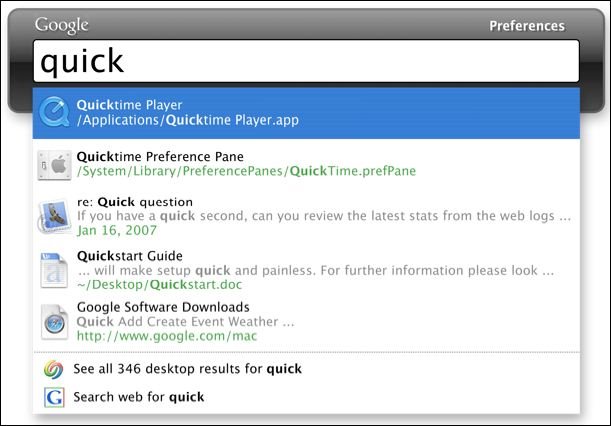
Once installed, the fastest way to get to Google Desktop is by using the Quick Search Box (QSB), and the fastest way to make the QSB appear is by pressing the ⌘ key twice quickly. You can also get the QSB by clicking the Google Desktop icon in the Dock. Once the QSB pops up, it's simple to use: type what you want to search for, and results start appearing. Just like Google search, each result comes with a couple of lines of text (which we call snippets) that give you context about that result. Snippets help you quickly figure out which result is most relevant to your search. When you see the result you want, just click it, and it opens.

Google Desktop is handy for finding the content of files, of course, but it has some other useful tricks as well. I use it as my application launcher: I just start typing the name of the application I want to run, and within a few keystrokes, the application appears at or near the top of the results list. Google Desktop also finds System Preference panes: type the name of the preference pane, and it bubbles to the top.


Google Desktop isn't limited to your local files. If you have a Gmail account, you can tell it to search through your Gmail as well. When you do this, it caches your Gmail on your Mac, so you can actually find and read Gmail messages even when you're offline. Once you turn this feature on, Google Desktop keeps up by indexing and caching new Gmail messages as soon as you receive them.

When you're searching Gmail (or email from Mail or Entourage), you can narrow your search by adding subject: to the query. For example, searching for hockey finds all results with the word "hockey" in them, but typing hockey subject:tickets specifically searches for an email with "hockey" in the contents and "tickets" in the subject line. Similarly, you can use from: to look for email from specific senders.


Possibly the coolest Google Desktop feature (and my personal favorite) is the ability to search your personal web history. Have you ever tried to find a web page you know you visited a few hours, days, or weeks ago? Google search helps, but it isn't quite the right tool for this job. With your permission, Google Desktop caches your web browsing history on your Mac so you can search it later. This is an incredible time saver if you surf the web a lot and you need to go back to something you've seen before.

Just browsing

We've done a lot with the Quick Search Box so far, but that's not the only way to access Google Desktop: you can also use it without ever leaving your browser. When you do a Google search in your browser (Safari, Firefox, or Camino), Google Desktop searches your computer as well, and if it finds anything that matches your search terms, you'll see appropriate results right at the top of the Google search results page. This is a very handy way to let you know you have something on your computer (maybe a page from your web history) that matches what you're looking for.


Click on the "results on your computer" link to get a list of search results. This Desktop results page has some handy features. At the top, the results are listed in various categories: email, web history, files, and so on. Click one of those to restrict your results to just that one category. For web history results, Google Desktop creates a thumbnail image of the web page, handy for helping you pick out the result you want. And because Google Desktop keeps track of changes to your files, every result has a Show cached link that lets you see older versions of the file.


Fancier tricks

I talked about using subject: and from: when searching email, and there are more ways to narrow your search. If you're searching for a particular kind of file, you can use filetype: to limit your results; for example, filetype:oo3 shows you only OmniOutliner 3 files; to find a folder, use (you guessed it) filetype:folder. If you're searching for a file by name, type filename: in your search. This works in both the browser search and the Quick Search Box. To find out all about this feature, see our Help Center article.

Finally, we've given Google Desktop a bunch of preferences so you can tailor its behavior. Want a menu bar icon to access it? You can have that. Hate that it has a Dock icon? You can turn it off. Don't want Desktop results when you do a web search? That's a preference, too. For more settings, check out System Preferences > Google Desktop. And have fun exploring everything it can do.

Google data APIs connect Cocoa developers to Google

Monday, April 16, 2007 at 6:51 AM

Posted by Greg Robbins, Software Engineer

When you trust your personal data to Google, it's still your data. You're free to edit it, to share it with others, or to download it and take it somewhere else entirely. The principle is simple: we won't lock you away from your data. In practice, we work hard to be sure that you and the software you use have the access that makes the principle really meaningful.

Last year, Google introduced Google data APIs, based on the Atom Publishing Protocol. Google data APIs are just a standard way to allow programs to get at your data on our servers. They already work with Google Calendar, Google Base, Blogger, and many other services. Google provides libraries to make it easy for programmers working in Java, C#, and Javascript to use the APIs.

The native language for Mac OS X applications is Objective-C, and it's our preferred language for Mac application development. To make it simpler for us to write Mac software that interacts with Google services, I created a framework to use Google data APIs directly in Objective-C programs. We are using the framework for our application development, and today we are making the framework available to all developers. The Google Data APIs Objective-C Library joins MacFUSE and Breakpad as open-source development efforts of Google's Mac software team, hosted at code.google.com.

A few small examples will give programmers an idea of how natural it is to use the framework to interact with Google services. Say an online roleplaying game wants to add a reminder to your Google Calendar that you need to be ready to join your guild in battle tonight between 10 and 11 pm. Adding the appointment to your calendar takes a few lines like this:

#import "GData/GData.h"

GDataServiceGoogleCalendar *service =
[[GDataServiceGoogleCalendar alloc] init];
[service setUserCredentialsWithUsername:@"myaccount@gmail.com"
password:@"mypassword"];

NSURL *calendarFeedURL =
[NSURL URLWithString:kGDataGoogleCalendarDefaultPrivateFullFeed];

GDataEntryCalendarEvent *newEvent =
[GDataEntryCalendarEvent calendarEvent];
GDataTextConstruct *content =
[GDataTextConstruct textConstructWithString:@"Battle today at 10pm"];

[newEvent setContent:content];
[newEvent setIsQuickAdd:YES];

[service fetchCalendarEventByInsertingEntry:newEvent
forFeedURL:calendarFeedURL
delegate:self
didFinishSelector:@selector(calendarTicket:finishedWithEntry:)
didFailSelector:@selector(calendarTicket:failedWithError:)];

Or, if a screensaver wants to get the items you've advertised for sale on Google Base and animate them in a groovy fashion, this is how it would retrieve your stuff:

NSURL *baseFeedURL = [NSURL URLWithString:kGDataGoogleBaseUserItemsFeed];
[service fetchGoogleBaseFeedWithURL:baseFeedURL
delegate:self
didFinishSelector:@selector(baseTicket:finishedWithFeed:)
didFailSelector:@selector(baseTicket:failedWithError:)];


The framework calls back into the screensaver with the list (called a feed) of Google Base items:

- (void)baseTicket:(GDataServiceTicket*)ticket
finishedWithFeed:(GDataFeedGoogleBase *)feed {
NSArray *myItems = [feed entries];
}

The framework also supports key-value coding, so it's quick and easy for Mac code chefs to use Cocoa bindings to whip up user interface displays of your information. Several sample Cocoa applications are available at code.google.com to show how to use more features of the Google data APIs.

Google Calendar, Google Base, Google Spreadsheets, and generic Atom feeds like Blogger are supported now in the framework, with access to more services already in development. If you are a Mac developer, I hope you'll join the open-source project and help us make even more Mac applications Google-savvy.

Google Desktop for Mac

Wednesday, April 04, 2007 at 6:05 AM

Posted By Mike Pinkerton, Software Engineer

People have been asking me since I started at Google what I've been working on, and until today, I've been unable to say. Now is the time to change all that and introduce the newest product from the Google MacEng team: Google Desktop for Mac (beta).

Google Desktop for Mac takes many of the features from the Windows product, such as indexing Gmail and web history, Google.com integration, finding content in past file revisions and deleted files, and fast application launching. But we know that simply "porting" to the Mac is not a good idea. So we took the time to develop a product that deeply integrates into Mac OS X and maintains its high standards of usability. This is a Mac product through and through, from the bezel on our search box down to correctly (and securely) handling multiple users and FileVault.

Our primary goal was to make desktop search as fast as Google.com web search. When people think Google, they think speed, and our Google Desktop product is no different. The search box makes launching documents and applications lightning fast and provides quick access to your files, folders, email, and webpages. Better still, with a convenient shortcut key (command + command) it's always right at your fingertips.


The next goal was to make Google Desktop as easy to use as a Google.com web search. In your web browser, Google Desktop looks and behaves like our web search, seamlessly blending the two experiences. When you do a Google.com search we'll also display interesting results from your Mac that are related to your search. Getting to Google Desktop is easy, whether you use the search box's shortcut key or click the "Desktop" tab on Google.com. Google Desktop additionally searches your Gmail and web history (from Safari, Camino, and Firefox) without you having to lift a finger, and can even find that important outline you deleted by accident!

As part of Google Desktop, you also get the new Google Updater. Don't worry, you don't have to do anything special: installing Google Desktop gets you Google Updater for free. It is designed to allow you to easily install, update, and uninstall all the Google software for Mac OS X. In addition to managing the products you have installed, Updater allows you to explore and discover other Google software, including Google Earth, Notifier, and Picasa Web Uploader, and learn a little about each of them. Best of all, Google Updater is always up to date with our full product line, and can even notify you about new software releases from Google!

Over the coming months, we'll continue to improve the product and innovate in the area of search, as well as find other ways to integrate into Mac OS X. As tech lead, I'm incredibly proud of the work my team has done, and I hope you enjoy the fruits of our labor. If you'd like to send us some feedback, we'd love to hear it over in our forum.

User 99, Unknown

Wednesday, March 14, 2007 at 10:30 AM

Posted by Greg Miller, Mac Team Software Engineer

If you're familiar with Unix or you've poked around user accounts and file permissions in Mac OS X, you have probably seen typical user accounts such as root, nobody, and daemon. Mac OS X has an additional interesting account for a user named unknown. Unknown has the UID (user ID) number 99, which is treated specially in the kernel and in some user-level libraries. The special properties afforded to unknown are needed to make device sharing between computers as painless as possible. Let's look at what makes unknown so special.

User unknown, or more precisely, the user with a UID of 99, is treated specially in the following ways:


  1. A file owned by UID 99 appears to be owned by whoever is viewing it (but see the caveat below).
  2. Volumes mounted with the MNT_IGNORE_OWNERSHIP flag treat all files as if they were owned by UID 99.

An important caveat to the first item above is that this special treatment does not apply to the root user. If root views a file owned by unknown, the file appears as it actually is — owned by user 99. Let's look at an example, using Terminal:
$ touch file.txt
$ ls -l file.txt
-rw-r--r-- 1 jgm jgm 0 Mar 9 22:07 file.txt

$ sudo chown 99:99 file.txt
$ ls -l file.txt
-rw-r--r-- 1 jgm jgm 0 Mar 9 22:07 file.txt

Here I created the file file.txt, then changed its owner and group to 99, but the file listing still shows me as the owner. What happens when I list the file as the root user?

$ sudo ls -l file.txt
-rw-r--r-- 1 unknown unknown 0 Mar 9 22:07 file.txt
When I use sudo to list the file as root, we can see that the real owner of the file is indeed unknown. Further, we can verify the behavior when we list the file as another, non-root user:
$ sudo -u test ls -l file.txt
-rw-r--r-- 1 test test 0 Mar 9 22:07 file.txt

This special treatment is handled in the VFS layer of the kernel, specifically, in the file xnu/bsd/vfs/kpi_vfs.c. In that file, the vnode_getattr() function has logic that looks like this:


int
vnode_getattr(...) {
...

if ((nuid == 99) && !vfs_context_issuser(ctx))
nuid = kauth_cred_getuid(vfs_context_ucred(ctx));
...
}

This shows the logic used when retrieving the attributes of a vnode. (A vnode is basically an in-kernel structure that represents a file.) In the code, if the vnode is owned by UID 99, and the current calling process is not root, then it returns the calling process's UID as the file's owner. The equivalent logic for handling a GID of 99 is not shown here. This is exactly the behavior that we saw above.

The second item I mentioned above is that volumes mounted with the MNT_IGNORE_OWNERSHIP flag cause all files to appear as if they are owned by user unknown. Additionally, new files on those volumes will be created with the unknown owner and group. In many cases, the MNT_IGNORE_OWNERSHIP flag can be controlled on a per-volume basis by checking the "Ignore ownership on this volume" checkbox in the volume's "Get Info" Finder window. However, the flag can also be set by specifying MNT_IGNORE_OWNERSHIP when calling mount(2).

We can use the following C program to determine whether a volume (in this case, we'll try my iPod shuffle) has this flag set:


$ cat mnt_ownership.c
#include <stdio.h>
#include <sys/param.h>
#include <sys/mount.h>

int
main(int argc, char **argv) {
struct statfs sb;
int ignore_flag;

/* argv[1] is path to the volume or a file/folder within */
statfs(argv[1], &sb);
ignore_flag = (sb.f_flags & MNT_IGNORE_OWNERSHIP);
printf("ownership %s\n", ignore_flag ? "ignored" : "enabled");
return 0;
}

$ gcc -o mnt_ownership mnt_ownership.c -Wall
$ ./mnt_ownership /Volumes/TINY
ownership ignored

We can see here that the mounted volume for my iPod shuffle is ignoring ownership. This means that all files on the iPod will appear to be owned by me (or whomever is the current user, according to the rules discussed above), and files created on the iPod will be owned by user 99. Let's prove that with an example in Terminal:

$ cd /Volumes/TINY
$ ls -l
total 16
drwxrwxrwx 1 jgm jgm 8192 Jan 27 14:12 iPod_Control/

$ sudo ls -l
total 16
drwxrwxrwx 1 unknown unknown 8192 Jan 27 14:12 iPod_Control

$ touch file.txt
$ ls -l file.txt
-rwxrwxrwx 1 jgm jgm 0 Mar 10 16:27 file.txt

$ sudo ls -l file.txt
-rwxrwxrwx 1 unknown unknown 0 Mar 10 16:27 file.txt

From this example, we see that files on the iPod are shown as belonging to me, although root sees that they really belong to unknown. When I create a new file, it follows the same behavior.

This special behavior is also handled in the VFS layer of the kernel, about 5 lines above the vnode_getattr() snippet discussed above. The relevant code from the function is highlighted here:


int
vnode_getattr(...) {
...

/*
* Handle uid/gid == 99 and MNT_IGNORE_OWNERSHIP here.
*/
...
if (vp->v_mount->mnt_flag & MNT_IGNORE_OWNERSHIP) {
nuid = vp->v_mount->mnt_fsowner;
if (nuid == KAUTH_UID_NONE)
nuid = 99;
...
}


if ((nuid == 99) && !vfs_context_issuser(ctx))
nuid = kauth_cred_getuid(vfs_context_ucred(ctx));
...
}

We see that if the MNT_IGNORE_OWNERSHIP flag is specified, the mnt_fsowner value of the mounted file system is consulted. If that value is KAUTH_UID_NONE, then the kernel hardcodes a value of 99 — user unknown. Following that, we go through the same logic as before for handling files owned by 99.

One question this brings up: what if the mnt_fsowner value is not KAUTH_UID_NONE? In that case, the files on the volume will appear to be owned by the user specified in mnt_fsowner. In the kernel, HFS+ is the only file system that actually makes use of this feature. This fact is noted in several places with comments like /* XXX 3762912 hack to support HFS filesystem 'owner' */.

One final question: should you ever uncheck "Ignore ownership on this volume"?

Maybe. If the device is shared among several computers, like an iPod or a thumb drive, then you probably want to leave that box checked. However, if you have a large external drive that you always leave attached to one machine, then unchecking that box is probably a good idea.

(This post is adapted from a post on Greg Miller's Unixjunkie Blog.)

MacFUSE news

Friday, March 09, 2007 at 4:44 PM

Posted by Scott Knaster, Mac Team Technical Writer

There are some new developments with MacFUSE, the open source project that makes it easier to bring file systems to Mac OS X, that we want to let you know about:
  • One of the great features of MacFUSE is the large set of language bindings available to programmers who want to write file systems. Now the MacFUSE website has an Objective-C library that's going to be especially popular with all you Cocoa programmers. Like MacFUSE itself, this library is open source so you can extend it to your heart's content. Note that this is the very same library that was used to create the MacFUSE demos shown during Macworld Expo 2007.
  • By popular demand, you can now get source code for the Spotlight file system that was presented as a demo of what you can do with MacFUSE.
  • For those of you wondering what MacFUSE is and what you can do with it, check out this article I wrote that appears on O'Reilly's MacDevCenter.
You can always get the latest info on MacFUSE by visiting the project's changelog page.

Good luck exploring new file systems with MacFUSE!

Camino talk now on Google Video

Friday, March 02, 2007 at 10:19 AM

Posted by Mike Pinkerton, Mac Team Software Engineer

Back in January, I had the pleasure of speaking at Google as a part of the Open Source Developers @ Google Speaker Series about the past, present and future of Camino. It's impossible to tell the story without understanding Mozilla's past and the lessons we learned through our involvement with the open source community at Netscape. Many of these lessons are universal across open source projects, and I hope others can learn from the successes and failures to improve their own work.

I hope you enjoy watching the talk.

A visit to Apple

Friday, February 23, 2007 at 8:40 PM

Posted by Scott Knaster, Mac Team Technical Writer

When you start work at Google, you get to choose whether you want a Mac, Windows, or Linux computer. For many new employees who have never used a Mac (or who haven't used one for a long time), this choice represents a chance to try living in Mac OS X. Google provides a supportive environment for users of various operating systems, so newbie Mac users can count on something of a comfort zone. And, just as elsewhere in the world, new Mac users at Google are often won over by Apple's excellent combination of hardware and software.

I spend part of my time at Google writing documentation for Google Checkout, and in that group I work with several of these recent Mac converts. Some of the folks in the group became intrigued with the idea of visiting Apple's headquarters, located just a brief drive down the road, and I mentioned that I could probably convince a couple of Apple friends to host us for lunch in Apple's cafeteria. The Mac newbies thought that was a fine idea, and lunch was arranged.

When the date arrived, my gang and I piled into our cars for the quick trip to Cupertino. We met up with my friends and spent the first part of our visit at Apple's legendary Company Store, where we admired all the new Macs and iPods, and wandered through the selection of Apple-logoed clothing, pens, notebooks, and other chotchkas. Strong willpower kept us from buying too much stuff.

After the store visit, our Google gang entered the main Apple building at 1 Infinite Loop and walked to Caffé Macs. We chose our food from among the sushi, burritos, soups, and other fare that was somewhat Google-like, paused to pay for our lunches (which was not Google-like at all), then took our seats.

A few minutes later, as we were enjoying our lunch and chatting with Apple friends, we noticed a slight disturbance in the room, as if all the air had rushed to a single place, over by the salad bar. As you have probably guessed, it was Apple CEO Steve Jobs, grabbing some lunch with Jonathan Ive, Apple's industrial design guru. As the two moved across the room, there was no great commotion -- after all, this probably happens just about every day at Apple -- but our Google group and many other folks stopped eating long enough to follow the two rock stars around the room for awhile.

Later, as we drove back to Mountain View, we reflected on our visit. My coworkers enjoyed the entire trip, but were most impressed with the impromptu Steve Jobs flyby. They even accused me of timing our visit to correspond with Steve's lunch (as if!). And so, a gang of new Mac fans at Google visited Apple and became full on converts.
